🛡️ LocalSIEM — Blue Team Security Monitor
A free, open-source, real-time security dashboard for macOS. Monitor your system, detect threats, and block suspicious IPs — all from your browser. Built for Apple Silicon (M1/M2/M3/M4).
📸 What It Does
Feature / Description
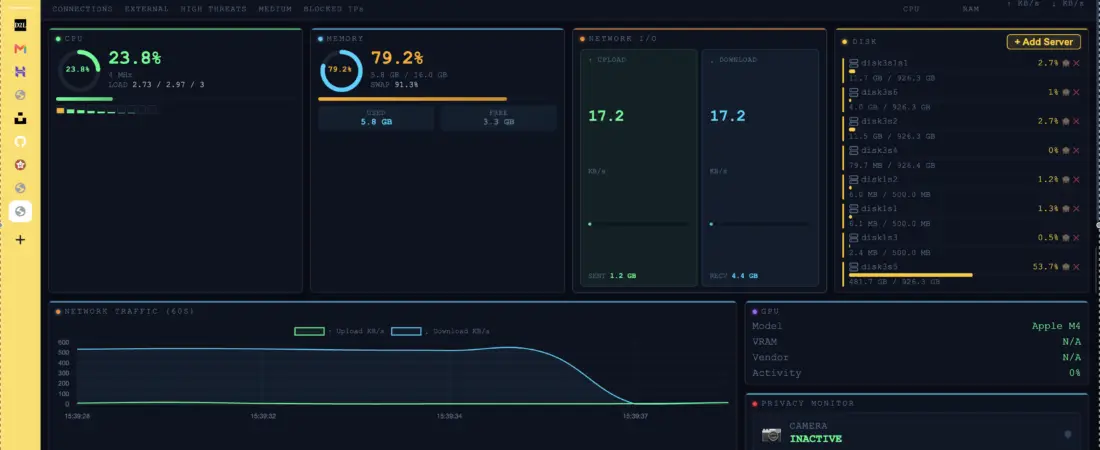
| 🖥️ System Monitor | Live CPU, RAM, GPU and Disk gauges |
| 🌐 Network Traffic | Real-time 60-second send/receive chart |
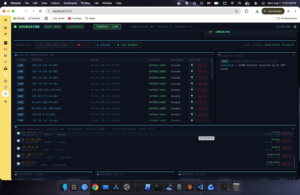
| 🔌 Active Connections | Every TCP connection with process name and threat level |
| 🚨 Threat Detection | Detects port scans, high connection rates, suspicious ports |
| 🌍 IP Investigation | Click any IP → geo location, country, traceroute, whois |
| 🚫 IP Blocking | Block suspicious IPs directly via macOS firewall (pf) |
| 🌐 Active Websites | Live DNS-resolved domains your machine is connecting to |
| 📷 Privacy Monitor | Alerts when camera or microphone is activated |
| 🖴 Disk Monitor | All drives with usage bars + add custom server/NAS paths |
| 🔒 Security Events | Live feed of all detected threats with one-click investigation |
⚙️ Requirements
– macOS (Apple Silicon M1/M2/M3/M4)
– Python 3.10 or higher
– Terminal access
> ⚠️ This app is “macOS only”. It uses macOS-specific tools (`ioreg`, `pfctl`, `lsof`) that do not exist on Windows or Linux.
🚀 Installation
Option 1 — One-Line Installer (Recommended)
Open Terminal and paste:
“`bash
curl -sSL https://raw.githubusercontent.com/sagar12-web/SIEM-Monitor/main/install.sh | bash
“`
This will automatically:
– Download all app files to `~/LocalSIEM/`
– Install Python dependencies
– Create a **Desktop shortcut** (double-click to launch)
– Create `LocalSIEM.app` in `~/Applications`
– Ask if you want to launch immediately
Option 2 — Manual Install
Step 1 — Clone the repository
“`bash
git clone https://github.com/sagar12-web/SIEM-Monitor.git
cd SIEM-Monitor
“`
Step 2 — Install dependencies
“`bash
pip3 install -r requirements.txt
“`
Step 3 — Start the server
“`bash
python3 siem_server.py
“`
Step 4 — Open the dashboard
Open your browser and go to:
“`
http://localhost:5555
“`
🖥️ How To Use
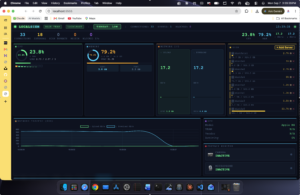
Dashboard Overview
Once the server is running, open `http://localhost:5555` in any browser.
🔍 Investigating a Suspicious IP
1. A threat appears in the “Security Events” feed
2. Click the event or click the 🔍 button in the connections table
3. An investigation panel opens showing:
– 🌍 Country, city, ISP and flag
– 🔄 Full traceroute with per-hop geo
– 📋 WHOIS information
– 🔌 All active connections from that IP
4. Click 🚫 BLOCK IP to block it instantly via the macOS firewall
🚫 Blocking an IP
Two ways to block:
– From the “connections table” → click `BLOCK` button on any row
– From the “investigation modal” → click `🚫 BLOCK IP`
Blocked IPs are listed in the “Blocked IPs** panel. The block uses macOS `pf` firewall and takes effect immediately.
> Note: Blocks require `sudo` access the first time. You may be prompted for your Mac password.
📷 Privacy Monitor
The Privacy Monitor card shows real-time camera and microphone status.
– 🟢 INACTIVE — device is off
– 🔴 ACTIVE — device is in use (card border blinks red, banner alert appears)
Detection uses Apple Silicon’s built-in `ioreg` hardware reporting — no special permissions needed for camera. Microphone detection is best-effort via active audio processes.
🖴 Adding a Custom Disk / Server
1. In the “Disk card, click + Add Server
2. Enter the mount path (e.g. `/Volumes/MyNAS`, `/Volumes/ExternalDrive`)
3. Enter a display label (e.g. `Backup Server`)
4. Click Add Disk
Custom disks show with a cyan border and a `custom` badge. Click **✕** to remove them.
🚨 Threat Levels
| Level | Trigger |
|—|—|
| 🔴 HIGH | Port scan (10+ unique ports in 60s) or very high connection rate |
| 🟡 MEDIUM | Suspicious port (e.g. 4444, 1337, 31337) or SYN flood pattern |
| 🟢 LOW | Unusual connection from unknown external IP |
🛑 Stopping the Server
In the Terminal where the server is running, press:
“`
Ctrl + C
“`
📁 Project Structure
SIEM-Monitor/
├── siem_server.py # Python backend — Flask + SocketIO + all monitoring logic
├── dashboard.html # Frontend — HTML/CSS/JavaScript dashboard
├── requirements.txt # Python dependencies
└── install.sh # One-line macOS installer script
🔧 Tech Stack
| Layer | Technology |
|—|—|
| Backend | Python 3, Flask, Flask-SocketIO |
| System Metrics | psutil, lsof, ioreg, system_profiler |
| Threat Detection | Custom rule engine (port scan, rate, suspicious ports) |
| Firewall | macOS pf (pfctl) |
| Frontend | HTML5, CSS3, JavaScript, Chart.js, Socket.IO |
| Geo / WHOIS | ip-api.com, traceroute, socket reverse DNS |
🤝 Contributing
Pull requests are welcome. For major changes, please open an issue first.
1. Fork the repo
2. Create your branch: `git checkout -b feature/my-feature`
3. Commit your changes: `git commit -m ‘Add my feature’`
4. Push: `git push origin feature/my-feature`
5. Open a Pull Request
⚠️ Disclaimer
This tool is for personal, local use only on your own machine. Do not use it to monitor networks or systems you do not own. IP blocking modifies your system firewall; use with care.
📄 License
MIT License – free to use, modify, and distribute.
‘Built for macOS Apple Silicon – Local Blue Team Security Monitoring’